WSJT-X – Fox & Hound Mode: Tips and Tricks for Successful FT8 DXing
18 June, 2025
This post isn’t meant to be exhaustive—just a quick roundup of useful tips I recommend checking out before diving into Fox & Hound mode in FT8 using WSJT-X.
For the full set of instructions and settings, don’t miss the excellent FT8DXpeditionMode User Guide by Joe Taylor, K1JT (May 16, 2018) on the WSJT-X site.
🧠 Key Nuggets to Remember
🎯 Know Where to Listen and Transmit
- Foxes transmit between 300 and 900 Hz. When sending multiple signals, they’re spaced at 60 Hz intervals.
- Hounds (that’s you!) should make initial calls anywhere from 1000 to 3000+ Hz.
- Calling below 1000 Hz? Don’t bother—Foxes won’t respond.
- Super Fox Mode difference: In Super Fox, Hounds can transmit anywhere , not just above 1000 Hz. That flexibility can help reduce pileup collisions.
🔧 Set the Right Mode
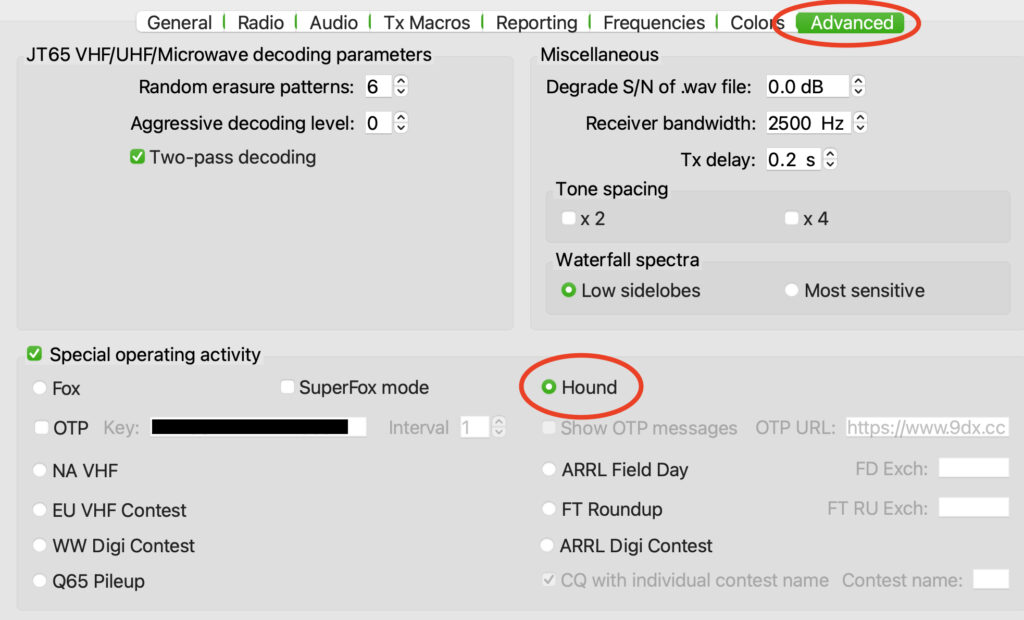
In WSJT-X, go to Settings > Advanced tab and select “Hound” under FT8 DXpedition mode.
⚠️ Don’t try to work the Fox using regular FT8 mode—it won’t work.
📶 Spread Out!
I usually set my bandwidth to 3.6 kHz on the IC-7300. Don’t bunch up—there’s no need to step on each other’s signals.
“Select Tab 1 on the main window for transmitted messages, and set Tx nnnn Hz to a frequency between 1000 and 4000 Hz. You can also use Shift+Click on the waterfall to pick your Tx frequency. Frequencies above 3000 Hz often have less QRM—worth a try!”
🧩 Dealing with Compound Calls
Foxes will occasionally transmit a compound callsign (e.g., VP8DX/2).
Make sure to enter the full callsign in the DX Call field to log it correctly.
🚫 Don’t Call Blindly
Seriously—if you’re not decoding the Fox, don’t call. You’re only adding to the QRM for others who are.
🦊 Your Turn!
Got a favorite Fox & Hound tip, success story, or a “what-not-to-do” moment? Drop it in the comments—let’s help each other level up our FT8 game.
73,
Allen
Hound settings under the Advanced tab. 